Dashboard Overview
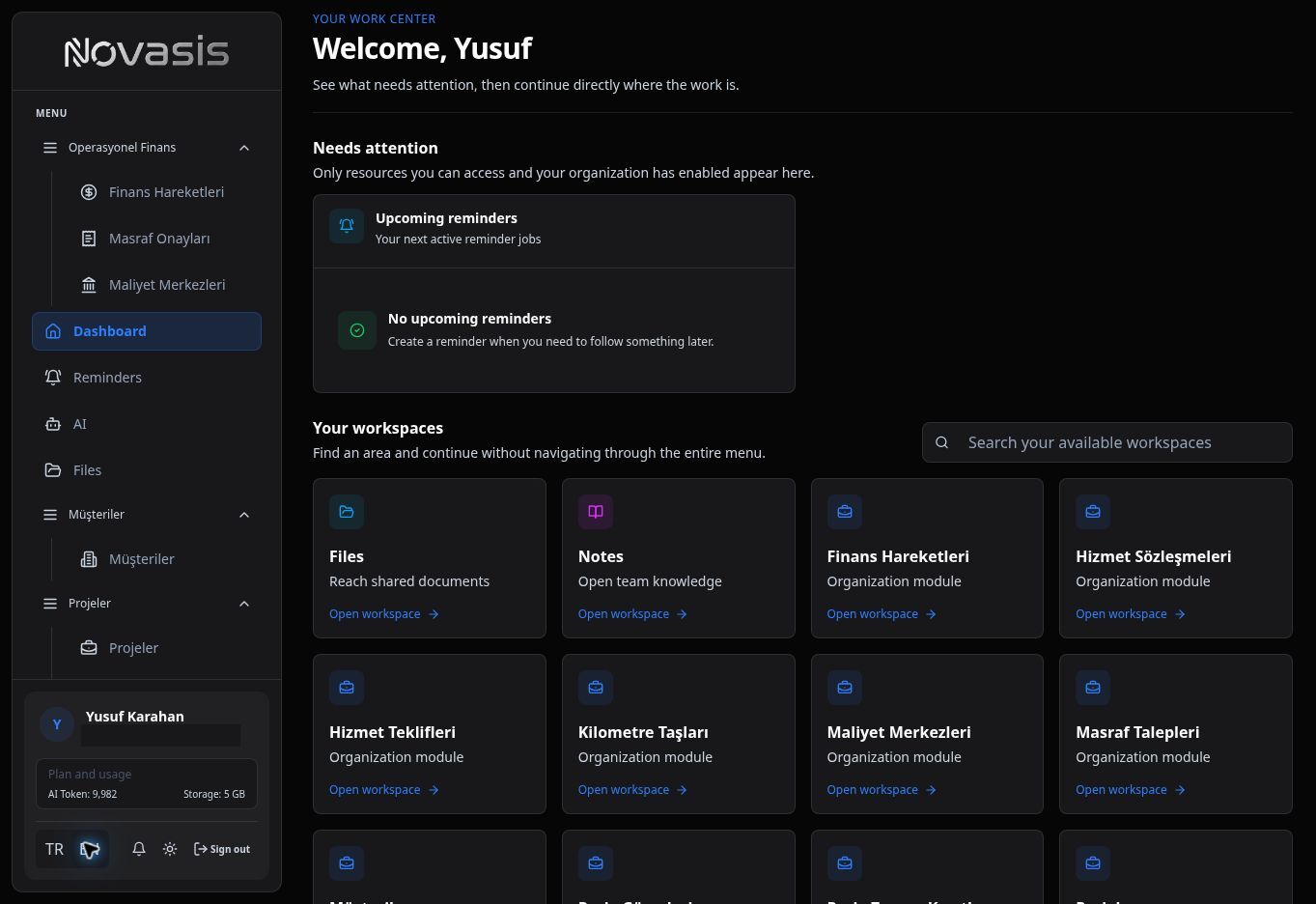
When you sign in to Novasis, the home screen gives you quick access to the areas you can use and the work that needs your attention.
Left Navigation
Use the left menu to open the areas available to you. What you see can vary according to your setup and account permissions.
Administrators can reorder and group menu items through Menu Layout.
Home Screen
The home screen is a starting point for everyday work. From here, you can open the areas available to you and review important items such as upcoming work.
Profile and Connections
Use your profile area for account information and connection settings. Telegram can be connected from the Profile → AI Assistant tab.
For plan, AI token, and storage information, see Billing and Payments.
Note: An area that is visible to another user may not be visible to you. This can depend on setup and permissions.